Second Monitor Not Detected? Fix It Fast (2026)
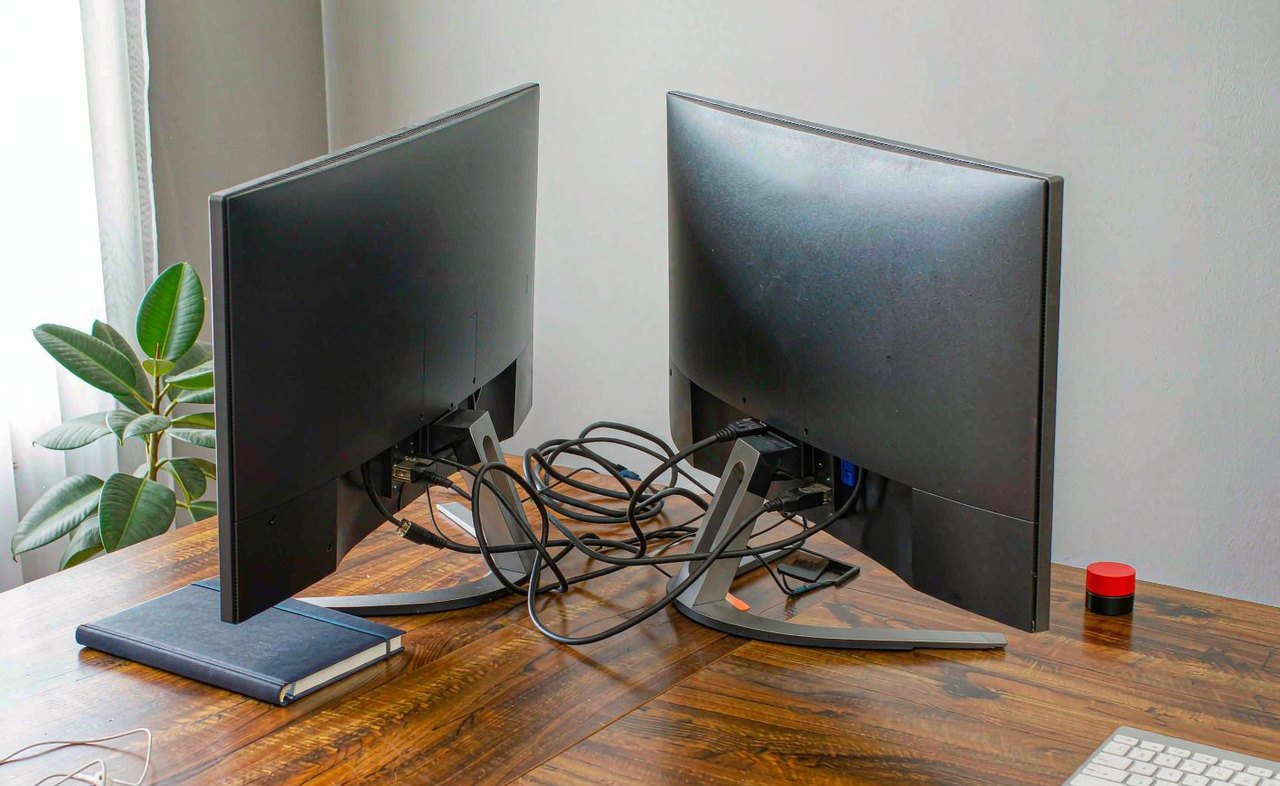
You plug in the second monitor, the screen stays black, and Windows acts as if nothing happened. Before you assume the monitor is dead, know this: the overwhelming majority of "monitor not detected" cases are a cable, an input, or a driver handshake — all fixable in minutes. Work from the cheapest checks to the deeper ones.
Step 1: Make Windows Actually Look
First, tell Windows to search. Press Win + P and a projection menu appears — choose Extend. Or open Settings → System → Display, scroll to Multiple displays and click Detect. Give it a few seconds; some monitors take longer than others to handshake.
If Extend was already selected, try Second screen only briefly and switch back — a forced mode change often nudges a sleeping handshake into life. This small step fixes more cases than people expect, especially with monitors that wake slowly from their own power saving.
Step 2: Check the Monitor's End
Monitors have their own input selection, and it is astonishing how often this is the whole problem. Open the monitor's on-screen menu and find the Input / Source setting. If the cable is in HDMI 1 but the monitor is listening to HDMI 2 — or still points at DisplayPort after a cable swap — you get a perfect, healthy black screen.
Confirm the monitor has power (look for the LED), then test it against another device — a laptop, a games console — to prove the panel itself works before blaming your PC.
Step 3: Cables, Ports and Adapters
Now the physical layer, which fails more often than anything electronic:
- Reconnect the cable firmly at both ends. DisplayPort connectors need a full click into their latch; a half-seated DP cable causes exactly this symptom.
- Swap in another cable. Cables die quietly, and one moved from another desk may be a single bent pin away from failure.
- Try a different port on the computer. Graphics cards carry several outputs, and individual ports do fail. Careful on desktops: if a discrete graphics card is installed, the motherboard's own video ports are usually disabled — a monitor plugged there will show nothing, ever.
- Treat adapters and converters as suspect number one. HDMI-to-VGA boxes, USB-C hubs and DP-to-HDMI cables each add a failure point. Remove any adapter from the chain and connect directly — even if only temporarily to test.
Step 4: Restart the Graphics Driver
Windows can restart its graphics stack without a reboot: press Win + Ctrl + Shift + B. The screen flickers, a beep may sound, and the driver comes back fresh — monitors often appear immediately.
If that does not do it, perform a true cold boot: shut down, then unplug the desktop's power cable for 30 seconds (on a laptop, hold the power button for 15 seconds while it is off). Fast Startup keeps parts of the system half-awake across ordinary "shutdowns," and a GPU left in a bad state will ignore new displays until real power has been cut.
Step 5: Update or Roll Back the Graphics Driver
The display driver is the software that decides whether extra monitors exist at all, so it is deeply involved in this failure.
- Open Device Manager → Display adapters.
- Right-click your GPU — NVIDIA, AMD or Intel. If you see Microsoft Basic Display Adapter instead, your real driver is missing; installing it may fix everything at once.
- Try Update driver first. Better still, install the full package from the GPU maker's app or website — those include the control panels used in the next step.
- If the problem began immediately after a driver update, choose Roll back driver.
Step 6: Force Detection from the GPU Side
The major driver suites can detect displays that Windows misses:
- NVIDIA: right-click the desktop → NVIDIA Control Panel → Set up multiple displays → use the force-detection option under "My Displays Not Shown".
- AMD: AMD Software → Display → Detect Displays.
- Intel: Intel Graphics Command Center → Display → Detect.
If the monitor appears here but not in Windows Settings, take the driver update step seriously — that mismatch usually means an outdated or generic driver.
Step 7: USB-C, Docks and Last-Mile Quirks
Modern connections bring their own rules:
- Not every USB-C port carries video. USB-C does many jobs, and a port without DisplayPort "alt mode" will happily charge things and move data while passing no image. Check your laptop's specifications for DP alt mode before blaming anything else.
- Docks add firmware, power budgets and cable hops. Test the monitor plugged directly into the laptop — if it works there, update the dock's firmware from the maker's site.
- DisplayLink-based docks install their own driver; if it is missing, the monitors stay dark.
- One last trap: a monitor detected but showing "out of range" needs a lower refresh rate — set 60 Hz under Display settings → Advanced display, then step it back up.
What Not to Bother With
Do not buy a new monitor — or a new graphics card — to solve a detection problem before swapping one cable; the cheapest component in the chain is statistically the most likely culprit. Registry edits and generic "display fixer" utilities do nothing here. And avoid bargain-bin no-name adapters: marginal ones cause intermittent black screens that look exactly like a hardware fault.
Quick Checklist
- Win + P pressed; Extend selected; Detect clicked
- Monitor's input source matches the cable; panel tested working
- Cable reseated and swapped; different port tried
- Direct connection tested — no adapters, no dock
- Win + Ctrl + Shift + B and a cold boot performed
- GPU driver updated or rolled back
- GPU-side force detection attempted
- USB-C port confirmed to support video; dock firmware updated
A second monitor that refuses to appear is nearly always a chain problem: cable, port, input, driver. Swap through that chain in order, cheapest first, and your desktop usually stretches across both screens long before you run out of ideas.